
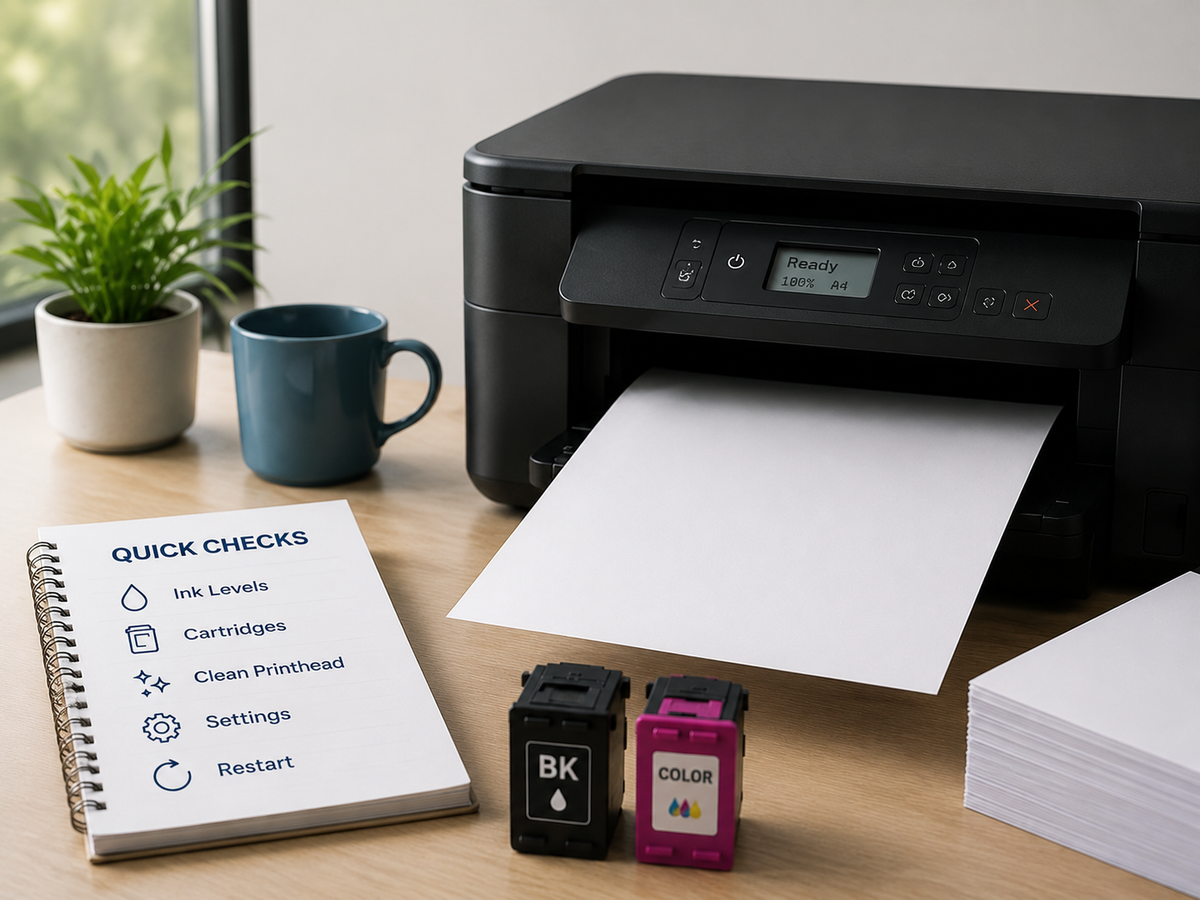
A printer that feeds paper but produces a blank page usually has an ink-delivery, cartridge-installation, printhead, software, or document problem. Start with simple checks before running repeated cleaning cycles or replacing multiple parts. The steps below are written for common home and office printers, but menu names vary by model.
First, Print a Test Page Without the Computer
Use the printer's control panel to print a status, configuration, nozzle-check, or print-quality page. This separates printer hardware from computer software.
· If the internal test page prints correctly, the problem is likely related to the document, application, driver, connection, or print settings.
· If the internal test page is blank, focus on ink or toner, cartridge installation, printhead condition, and printer maintenance.
1. Check Ink or Toner Status
Review the supply levels on the printer display or in the printer software. Level readings are estimates, so also consider recent print volume and whether a cartridge was just installed. Replace a cartridge that is empty, damaged, leaking, or beyond its usable condition.
2. Confirm the Correct Cartridge Is Installed
Check the cartridge number against the printer model. Cartridges that look similar may use different keys, chips, regions, or ink formulations. Make sure every color is in the correct slot and fully seated.
3. Remove Protective Tape and Packaging
A new cartridge may have a pull tab, outlet seal, clip, cap, or protective tape. If a required seal remains in place, ink cannot flow. Remove only the packaging identified in the installation instructions; peeling off an unrelated label can damage the cartridge or block its vent.
4. Check the Cartridge Vent
Some ink cartridges need an open air vent to maintain pressure as ink leaves the cartridge. Packaging residue or an incorrectly removed tab can block the vent. Inspect the cartridge according to its instructions without inserting tools into openings.
5. Remove and Reinstall the Cartridge
Turn the printer on, open the cartridge access area, and wait until the carriage is ready. Remove the affected cartridge and reinstall it until it clicks or locks into position. Avoid touching the electrical contacts, ink outlet, or nozzles.
6. Run a Nozzle Check
A nozzle-check pattern shows whether black or color channels are missing. If the pattern contains gaps, run the normal printhead-cleaning function once, then print another nozzle check. Allow the printer to rest if the manual recommends a waiting period.
Do not repeatedly run deep-cleaning cycles without checking the result. Cleaning uses ink and may fill a maintenance or waste-ink component faster.
7. Check Print Settings
Open the print dialog and confirm the correct printer, paper size, paper type, color mode, and print-quality setting. Make sure the document is not using white text on a white background, an empty print area, or a print-only-selected-pages setting that excludes the content.
8. Try a Different File and Application
Print a simple text document or the operating system's printer test page. A damaged PDF, unusual font, transparency effect, or application error can create a blank output even when the printer is functioning normally.
9. Restart and Update the Printing System
Cancel stuck jobs, turn the printer off with its Power button, restart the computer or mobile device, and reconnect the printer. Install the correct driver and review firmware updates from the printer manufacturer. After an update, recheck default settings and cartridge status.
10. Inspect the Printhead or Toner Components
If an inkjet printer remains blank after correct cartridge installation and maintenance, the printhead may be severely blocked, electrically faulty, or unable to receive ink. Depending on the model, the printhead may be replaceable or may require service.
For a laser printer, confirm that toner seals and shipping materials are removed. A damaged cartridge contact, drum, transfer component, shutter, or high-voltage connection can also cause blank pages. Follow the service guidance for the exact model.
What If Only One Color Is Missing?
A page may look blank when black ink is missing from a text document, even if color channels still work. Print a color test page. If only one channel is absent, focus on that cartridge, nozzle section, vent, or contact rather than replacing every supply.
When to Stop Troubleshooting
Stop and seek support if you see leaking ink, damaged contacts, unusual grinding, repeated electrical errors, smoke, a burning smell, or a cartridge that cannot be inserted normally. Forcing parts can turn a supply issue into printer damage.
Frequently Asked Questions
Why is my printer printing blank pages with new ink?
The most common causes are remaining protective material, a blocked vent, incomplete seating, an unrecognized cartridge, air or dried ink in the printhead, or a software setting. Print an internal test page and inspect the new cartridge first.
Can a full cartridge still fail to print?
Yes. Ink level does not confirm that ink can reach the page. A blocked nozzle, closed vent, poor electrical contact, damaged cartridge, or faulty printhead can interrupt printing.
How many times should I clean the printhead?
Use the normal cleaning cycle and check the result before repeating. Follow the model manual because excessive cleaning wastes ink and may not repair a failed printhead.
Why does the printer print a blank extra page?
An extra blank sheet after a document can be caused by page-break settings, document formatting, paper-size mismatch, a separator-page option, or a driver issue. This is different from every printed page being blank.
Final Takeaway
Begin with an internal test page, then check supply status, cartridge matching, protective seals, installation, nozzles, settings, and software. This sequence narrows the cause without wasting ink or replacing unrelated parts. When the printer itself cannot produce a test pattern after correct maintenance, model-specific support or service is the next step.